
Connect Keyapp to Claude, ChatGPT, Cursor or VS Code and run your app promotion from a single conversation
- Overview:
- Why ASO work is moving into the chat
- What Keyapp MCP actually is
- Setting it up in a few minutes
- A real session: diagnosing unstable rankings for a runner game
- Campaigns with a confirmation step built in
- Reviews, ratings and the questions worth asking
- What it costs and where the limits are
- Where to start
AI assistants are turning into the place where mobile marketers do their everyday research, and ASO work is moving there too. Keyapp MCP connects Claude, ChatGPT, Cursor and VS Code to your Keyapp account through 33 tools, so keyword research, rank tracking, review analysis and campaign management happen in one conversation. Seven of those tools work without an account, and every action that spends money waits for your explicit confirmation in the chat. The practical result is fewer tabs, fewer exports, and quicker answers to questions that used to take an afternoon of cross-referencing.
Why ASO work is moving into the chat
Anyone who has managed keyword campaigns for more than a few apps knows how the routine goes. You open the rank tracker in one tab and the store listing in another. A spreadsheet holds the keyword list, and a fourth window shows the campaign dashboard. A simple question like “did my rankings drop because of my metadata update or because Google Play changed something?” turns into twenty minutes of copying numbers between screens.
The Model Context Protocol (MCP) is an open standard that lets an AI assistant call external tools and APIs directly. You no longer have to paste data back and forth. The assistant fetches it, combines it, and reasons over it. For ASO, this is a good fit, because most of our daily questions involve combining data from several places: rank history plus volatility data, reviews plus rating history, competitor keywords plus store autocomplete.
Keyapp MCP brings that capability to your Keyapp account. You write in plain language, in any language, and the assistant picks the right tool.
What Keyapp MCP actually is
The Keyapp MCP server exposes 33 tools to your assistant. Seven are ASO research tools that work even without a Keyapp account: app search, AI keyword suggestions, top charts, the Algorithm Detector that scores daily ranking volatility per country, and a few others. The remaining 26 work with your account. They cover your apps, My Keywords tracking, review and rating history, keyword, premium keyword, direct and category campaigns, your balance and API credits, and AI-generated store texts.
A few design choices matter in daily work. Apps are added and refreshed straight from the store, so the assistant always works with real titles, icons and descriptions. Keywords you promote in campaigns are tracked automatically, so their rank history is ready when you want to evaluate results. Destructive actions such as removing an app or deleting tracked keywords only happen after you confirm which item you mean.
Setting it up in a few minutes
The connector URL is the same for every client:
In Claude, open Settings, then Connectors, then Add custom connector, name it KeyApp and paste the URL.
In ChatGPT, first enable Developer mode under Settings → Security and login, then open Settings → Plugins, create a new plugin with the same URL, and select OAuth authentication.
Cursor and VS Code users add the URL to their mcp.json file.
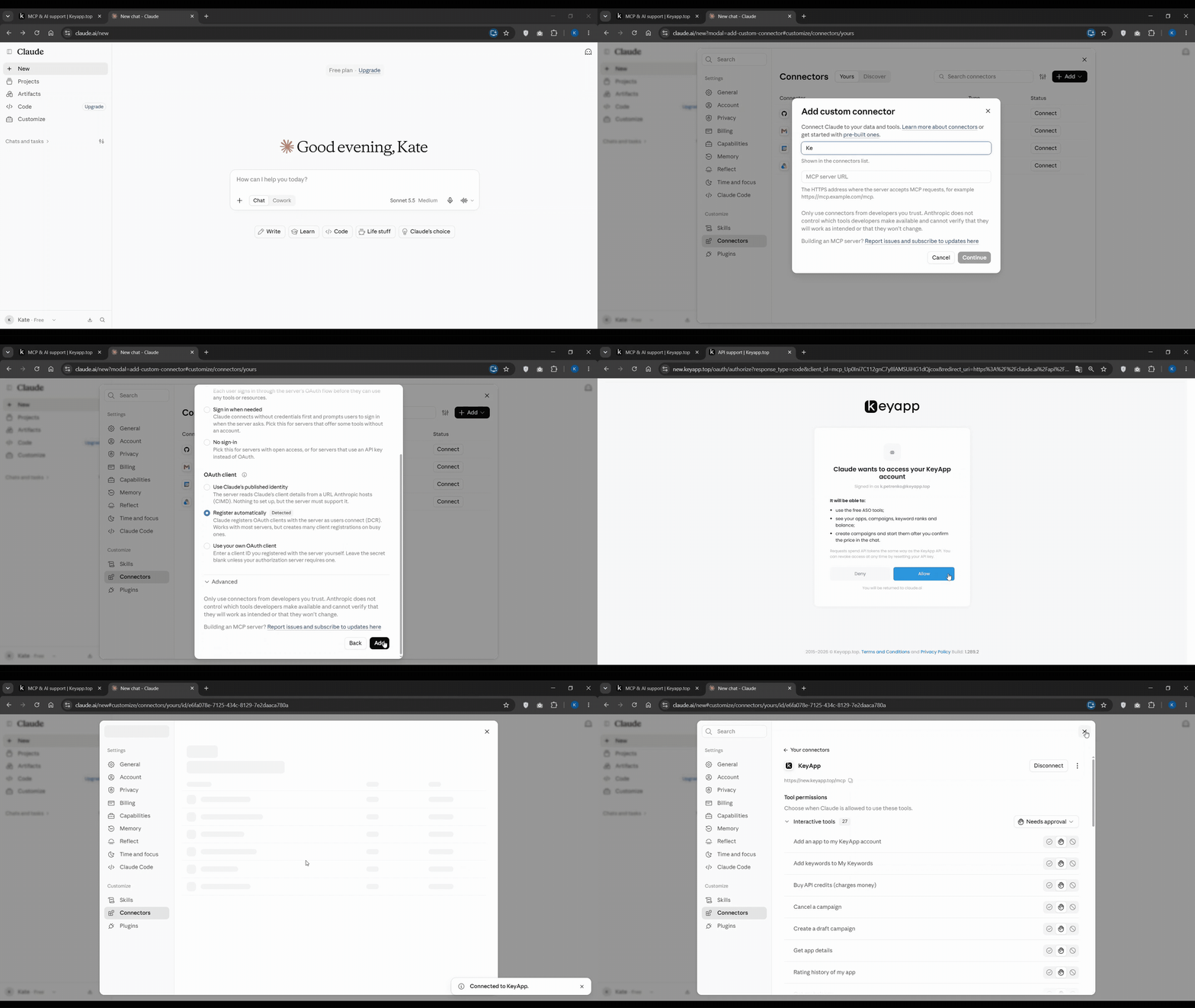
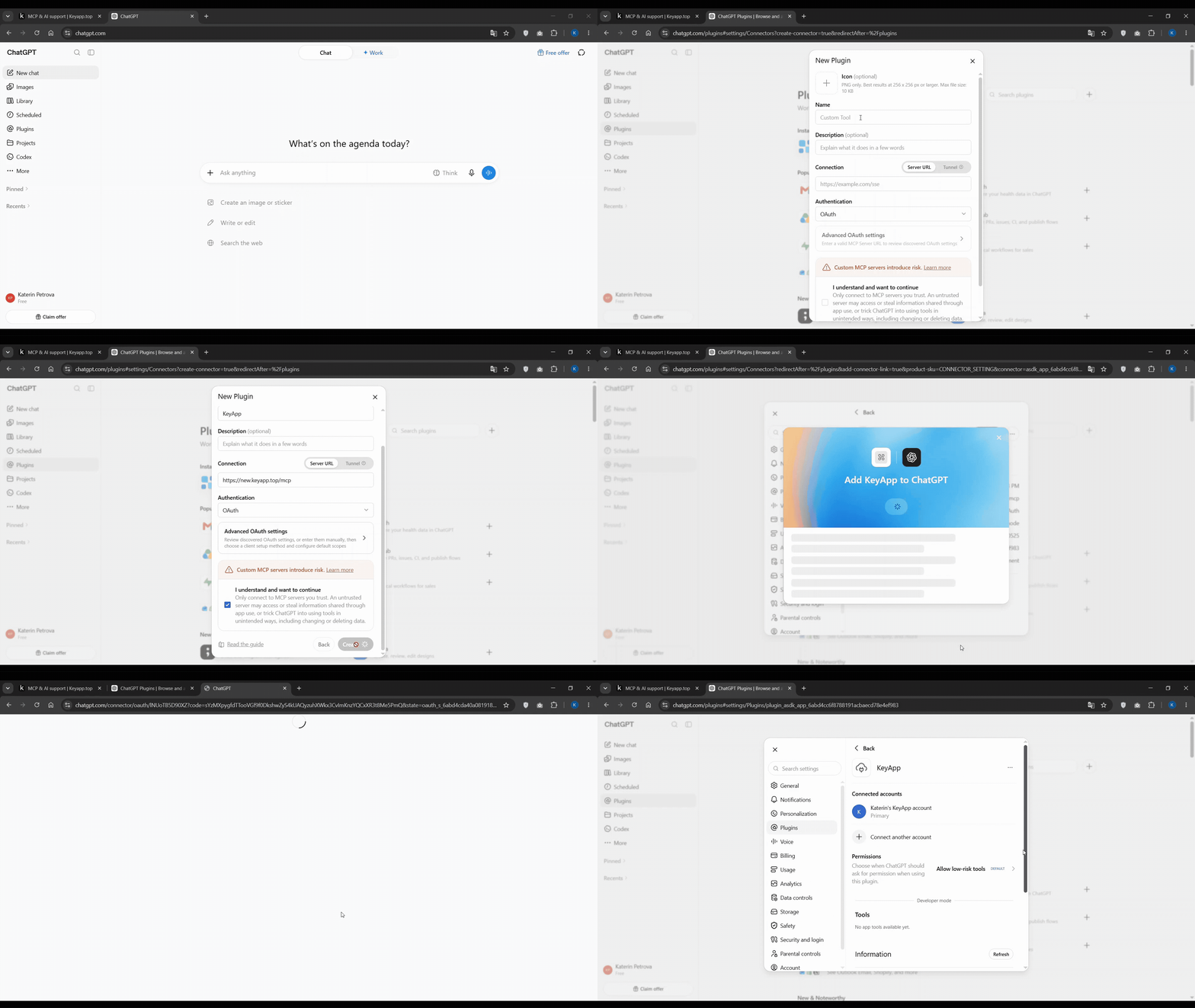
After that, your assistant opens a Keyapp window, you log in and click Allow. There is no API key to copy and nothing to install. Type “Hi KeyApp” and Claude, ChatGPT and VS Code will show a menu with a button for every action, which is the easiest way to explore what is available.
A real session: diagnosing unstable rankings for a runner game
Feature lists only go so far, so here is what an actual session looks like. We connected Claude to an account tracking a casual Google Play title, Pet Runner Cozy Cat Game, and asked one question: analyze the five most popular tracked keywords in the US over the last 30 days and check whether major ranking fluctuations overlap with periods of unusual store volatility.
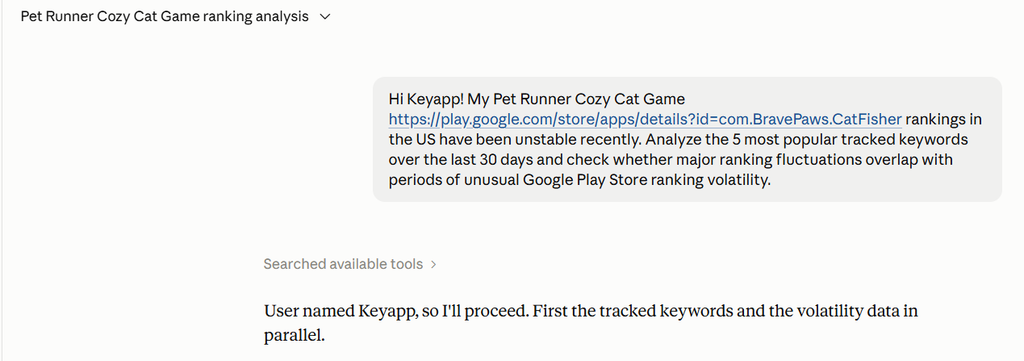
The assistant pulled the full list of tracked keywords with popularity and latest rank, then requested 30-day rank charts for the most popular ones. Two of them, “offline games” and “running app”, had no rank data for the period, and the assistant said so instead of quietly skipping them. It then checked the campaign list (no campaigns were running), queried the Algorithm Detector for the US, and lined everything up in one table.
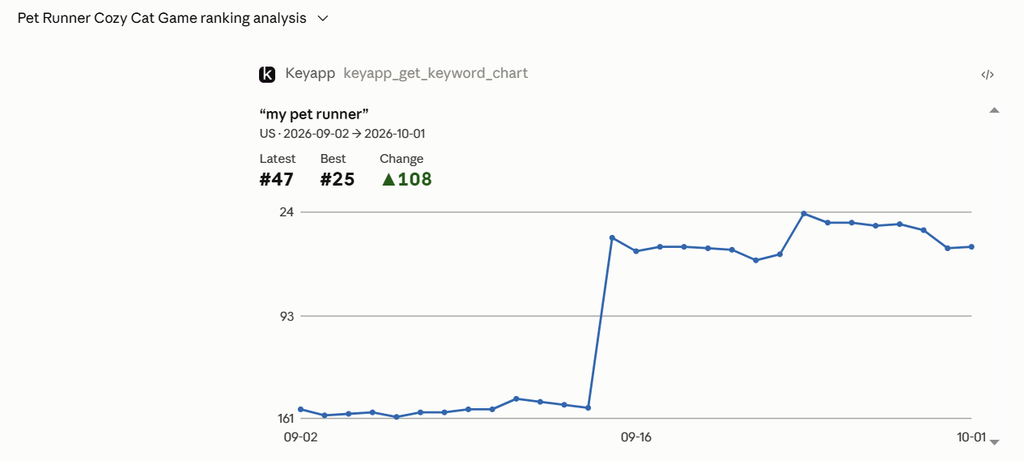
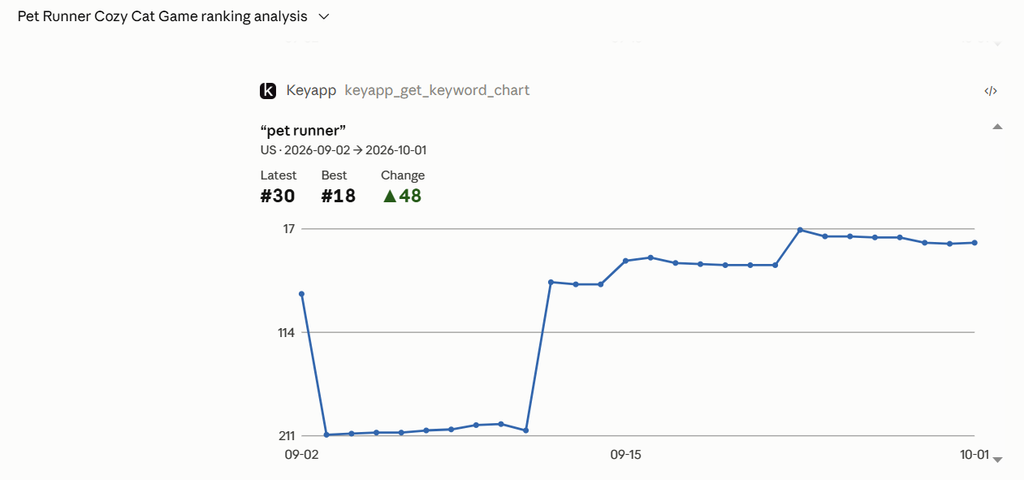
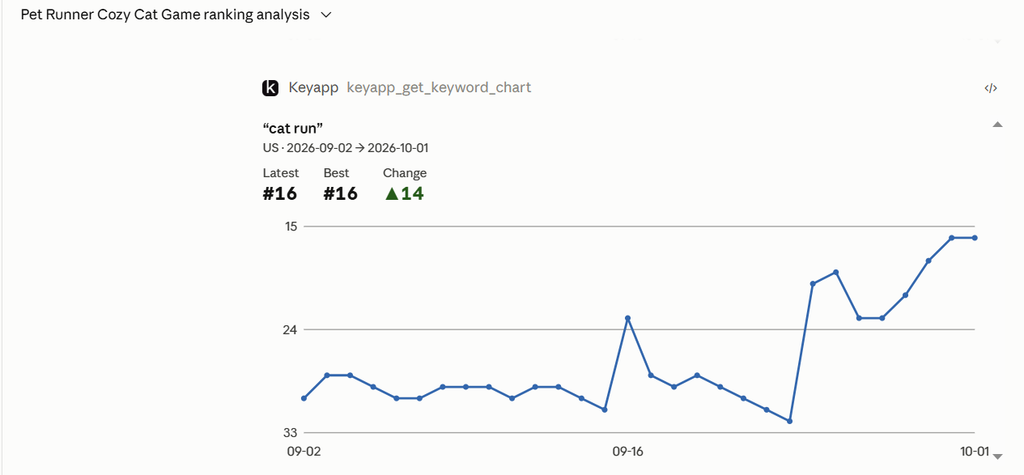
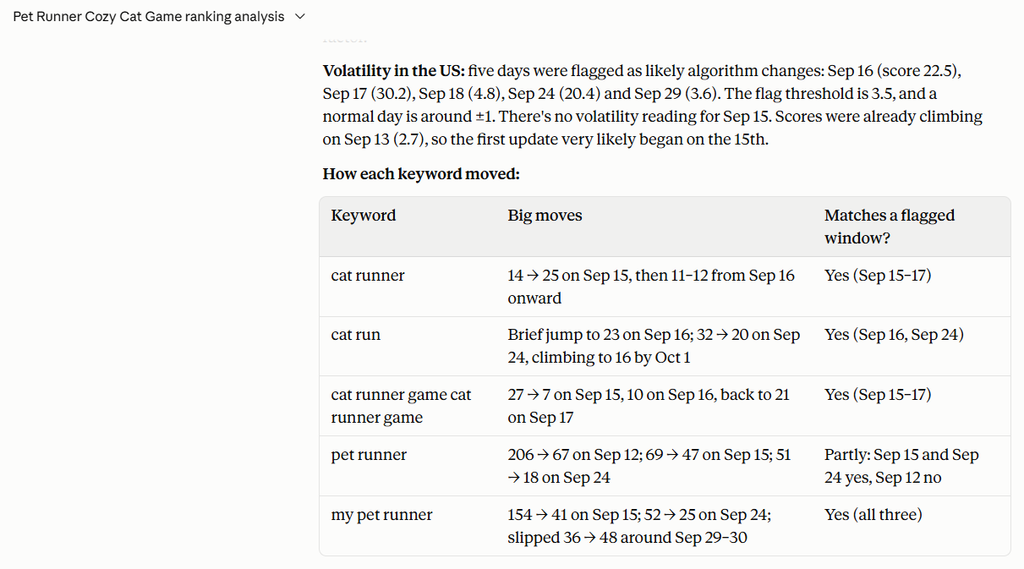
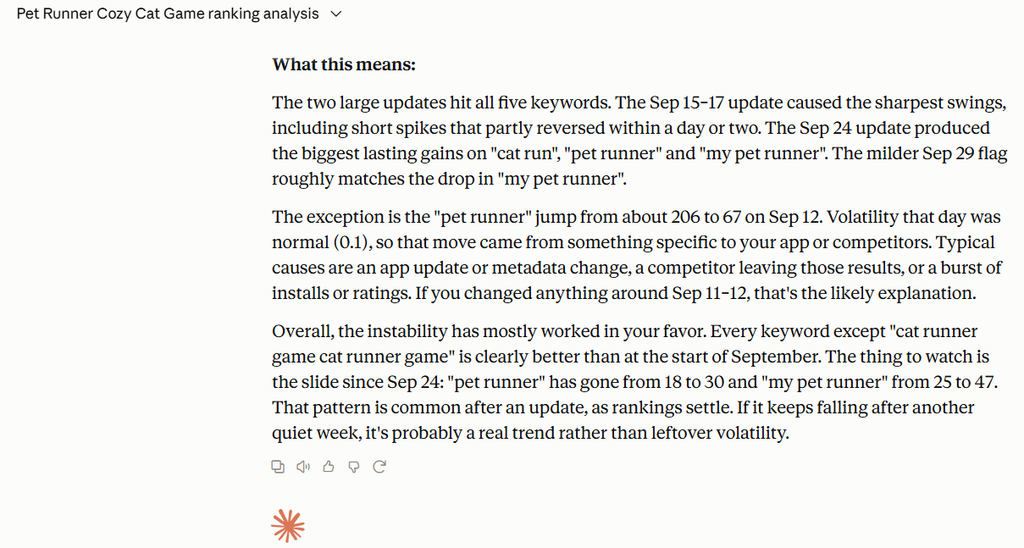
The conclusion was specific. Two flagged updates, Sep 15 to 17 and Sep 24, lined up with the sharpest swings across all five keywords, and most of them ended the month well above where they started: “cat runner” settled around #11 to #12. The assistant also caught what didn’t fit. A big “pet runner” jump on Sep 12 happened on a normal-volatility day, so it pointed to an app-specific cause such as a metadata change. It flagged the slide since Sep 24 as the thing to watch.
Doing this manually means exporting five charts, opening the volatility data for the same country, and comparing dates by eye. In the chat, it took one prompt and a few API credits.
Campaigns with a confirmation step built in
Launching paid promotion through an AI assistant only makes sense if you stay in control of the money. Keyapp MCP handles this with a three-step flow. First, the assistant requests a quote: the price and the per-day install plan, without creating anything. Second, after you approve the plan, it creates the campaign as a draft, with nothing charged. Third, it starts the campaign and deducts the price from your balance, and only after you have explicitly confirmed the quoted price in that conversation.
This lets you plan in natural terms. You can say “I have a $20 budget for my word game in the US, plan a 7-day keyword campaign for ‘word games’ and ‘crossword puzzles’, and show me how many installs I can get.” The server picks the largest number of installs that fits the budget, and you see the daily plan before deciding. If plans change, cancelling a draft or running campaign refunds undelivered installs to your balance.
The most valuable prompts combine analysis and action. Ask the assistant to find three tracked keywords ranking just outside the Top 10, prioritize them by popularity and proximity, and prepare a quote for a 7-day campaign on them. When the campaign ends, ask it to compare rankings before and after, and to check whether any big movements overlapped with market volatility in the same period. That last check separates real campaign impact from store noise, which is the question every client and every UA lead eventually asks.
Reviews, ratings and the questions worth asking
The review tools are where the assistant format pays off most. Reviews arrive with statistics by rating, sentiment and ISO week, and you can filter by stars, date range and words in the text. Combined with daily rating history, this answers questions that are tedious to research by hand.
Picture a puzzle game whose rating dips the week after a release. You can ask the assistant to find the day with the most new 1 and 2 star votes, read the reviews from the days around it, and look for words like “crash” or “freeze”. Note that reviews carry no app version, so the release link comes from the dates, not from metadata. You can also ask which words happy users use to describe your app and turn those into keyword candidates, or compare complaints across the US, UK and Germany to see where a localization issue is hurting you. Reply drafts stay in the chat for you to edit: nothing is published to the store.
What it costs and where the limits are
Tools that read paid Keyapp API data cost 1 API credit per call, exactly as they would through the API: app search, keyword rank charts, current rank checks, store autocomplete, competitor keywords and rating history. Reviews cost 1 credit per page of about 40 reviews, so roughly 3 credits per 100 reviews. All other tools are free. Credits come in packs of 500 for $10, and the assistant will only buy a pack or turn on auto top-up after you explicitly agree.
There is one deliberate limitation. Campaigns with ratings or reviews, including guaranteed review campaigns, are not available through the AI assistant. You still create those in the Keyapp cabinet on the “Add campaign” page. AI metadata generation also has a per-user free usage limit, so it works best when you give it a finished keyword set, not repeated attempts with the same input.
Where to start
If you are new to the connector, keep the first session small. Connect your client, type “Hi KeyApp”, add one app, and ask for the tracked keywords closest to the Top 10. Then ask the assistant to check those keywords against the Algorithm Detector for the last 30 days. Within a few prompts you will see whether this way of working fits your routine, and most specialists find it saves the most time on exactly the cross-referencing tasks they used to postpone.
If anything is unclear, contact the Keyapp support team: we’ll be happy to help!